As per the following document: how_to_use_the_wand_for_stocktake.docx
¶ Training Video
Please view the Stocktake Training video for a quick run through on how to use the equipment: internal only - Stocktake Training
CNRL HQ will apply a ‘Stocktake Pending’ status on your collection prior to you completing the stocktake. Once this status is applied, you will be notified to commence the stocktake.
At the completion of the stocktake, run an ‘Item search’ in the Circulation module for items with the status 'Stocktake Pending'. These are the items that were not located with the wand. Complete a manual shelf-check for these items and run them through returns (or use the wand if your list is large).
If you still have items that have not been found during the stocktake, alert CNRL HQ and Collection/Technology staff will process these items.
¶ Tablet Configuration
- Turn on tablet – hold in smaller button on top of the tablet
- Connect tablet to WiFi - Settings > Network & Internet
- Open ‘Live Scanning Wand’ app
- Go to settings in bottom left corner
- Touch the Current Profile and select your branch's pre-configured profile - there is one for each branch to perform a Check In Stocktake or Stocktake Only.
- Make sure the following settings have your branch code
- Login Location
- Library ID
- Branch Location Id
- Depending on the type of stocktake being performed the toggle Perform a Check In request for every item detected, should either be:
Off: Stocktake only
On: Stocktake with check-in
Note: The above option has moved to Sort Rules and both Check In options should be toggled on or off depending on the stocktake type being performed.
- Select ‘Save’ if you needed to change any settings
¶ Connect Wand
- Turn on wand using switch on back. Make sure wand is within 1 metre of tablet.
- Make sure tablet is showing status ‘RFID Connected’ and ‘SIP2 Connected’ in top right hand corner.
- If RFID won’t connect try switching wand off then back on - Note, this won't always work and certain wands seem to be “coupled” to specific tablets (possible issue with Live Scanning Wand software)
¶ Example of coupled Wand and Tablet
- The wand with Serial Number: PR004757-02 (See back of wand), which can also be identified by the device name RNBT-2121 (once paired - hold down the Bluetooth connection icon to see the name of the paired device) seems to be “coupled” with,
- The tablet named: Galaxy Tab S6 Lite - Library 11 (See Settings > About Tablet).
- If ever prompted on the tablet for a pairing code, this particular wand/tablet combination accepts the pairing code of: 1234
¶ General Stocktake Procedure
- Select ‘Stocktake’ to begin scanning items
- Press pause button in bottom right hand corner to pause then same button again to start again
- Select arrow in top left hand corner to exit scanning mode
- Select circle in bottom middle to exit Live Scanning Wand
¶ Stocktake tips
- Go slowly! If you move the wand too fast it won’t be able to process every item on the shelf
- Move items away from metal ends and book ends as the metal in these can block the wand from reading the tags
- Keep an eye on the tablet’s battery and the wand’s battery. Make sure both are charged before you start. The wand’s battery level is visible when the wand is connected to the tablet. The wand will have spare batteries in the case but please make sure you charge the used batteries when you swap them over
- If you are using the wand to look for reserved items make sure you put a ‘reservation pending’ status on those items before you start scanning
¶ After stocktake reporting
In Spydus, navigate to Enquiry > Circulation > Item > Item Search and enter the following search criteria:
Location: Current Branch
Last Stocktake Date: As per Spydus Help - Date Searching
The following shows examples from the above Spydus Help page - which should be checked for the most up-to-date information:
Single date:                 12 feb 2015 or 12/02/2015

Month:                         feb 2015

Year:                             2015

Date range:                   01/01/2015 – 31/12/2015

After or before date:    > 22/03/2015 OR < 22/03/2015
¶ Wand Setup for Reservations
As per the following document: wand_setup_for_reservations.docx
This is particularly useful for Junior Fiction or Picture Book reservations that may be more difficult to find.
In Spydus, go to Circulation > Item > Bulk Item Maintenance
Choose the following search criteria:
- Item Status: Set and RSVP/Reservation Pending
- Tick Check for reservations
Click Search
In the Search item window that appears, navigate using the now horizontal menu choices to: Circulation > Item > Available for Allocation
In the Items Available for Allocation Search window that appears, apply the usual picklist settings:
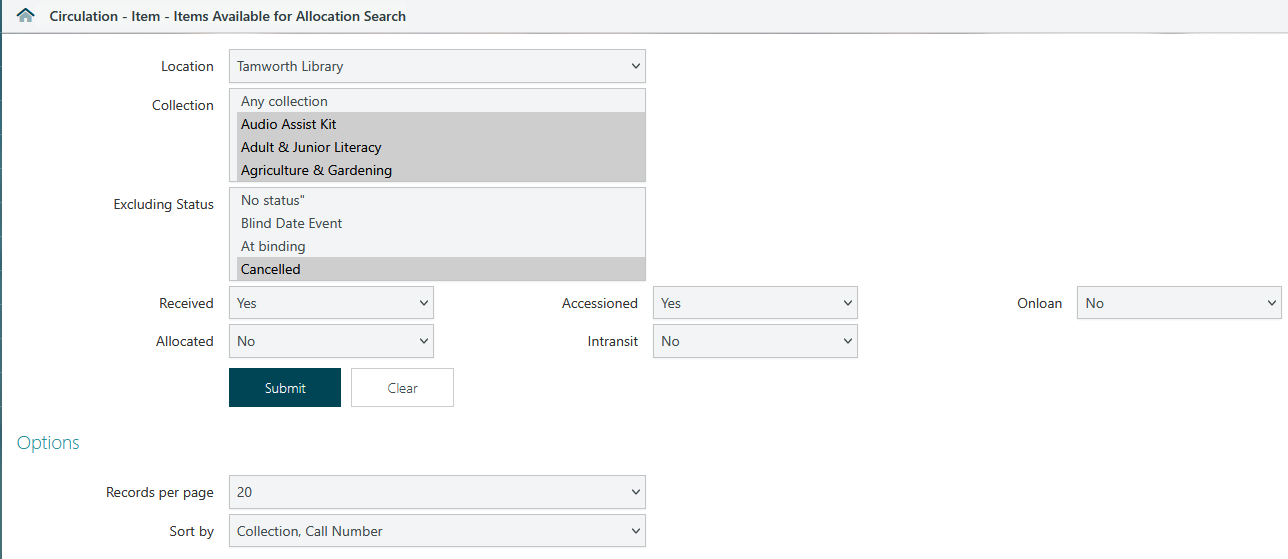
- See Default Collection settings and Default Excluding Status settings if required.
Hint: Set the Collection setting to a single collection, i.e. Junior Fiction to flag a specific set of items and then find them with the wand.
Click Submit.
When you have the list of books you want the wand to find for you, click Select Set.
In the window that appears, tick Apply to all and click Yes.
Double-check the Tablet Configuration in the section above.
Begin the search - touch the Stocktake button in the Live Scanning Wand app on the tablet.